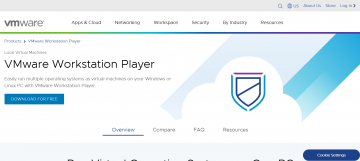
Permasalahan Virtualisasi pada VMware Workstation 16 Player pada Windows
Beberapa permasalahan yang sering dialami oleh pengguna baru VmWare Workstation 16 Player saat membuat Virtual Mesin diantaranya:
- Credential Guard/Device Guard is enabled.
- Windows Sandbox is enabled
- Virtual machine platform is enabled
- WSL2 is enabled
- Hyper-V is enabled
- Virtualization Technology Not Enabled
Pesan Error yang muncul saat running VmWare Workstation Player/Pro diantaranya seperti ini
Virtualized Intel VT-x/EPT is not supported on this platform.
Continue without virtualized Intel VT-x/EPT?

Error while powering on: VMware Player does not support virtualized performance counters on this host. Refer to VMware KB article 81623 at https://kb.vmware.com/s/article/81623 for more details. Module 'VPMC' power on failed. Failed to start the virtual machine.

Ikuti Langkah-Langkah Berikut ini
Matikan Pengaturan Hyper-V pada Windows
Buka menu "Turn Windows features on or off" pada Windows
Lihat pada bagian Hyper-V / Windows Hypervisor Platform dan Virtual Machine Platform.
Jika sudah di cetang, hilangkan Centang dan klik "Ok".

Setelah Selesai Restart Komputer anda
Jika Cara diatas tidak ditemukan, kemungkinan Virtualisasi belum diaktifkan pada pengaturan BIOS.
Catatan:
- Beberapa komputer mungkin memerlukan power-off dan power-on restart setelah mengaktifkan virtualisasi.
- CPU yang terpasang pada model produk Anda mungkin tidak mendukung Intel Virtual Technology jika opsi tersebut tidak ada dalam menu.
- Jika Intel atau AMT Virtualization tidak terdaftar di halaman konfigurasi BIOS mana pun, maka sistem tidak mendukung Intel atau AMT VTT. Teknologi virtualisasi tidak dapat diaktifkan jika sistem tidak mendukungnya.
Gunakan langkah-langkah berikut untuk mengaktifkan virtualisasi.
- Boot sistem ke BIOS dengan tombol F2 (sesuai pengaturan leptop) saat dihidupkan.
- Pilih tab Keamanan di BIOS .(beberap Bios memiliki menu yang berbeda)
- Aktifkan Intel VTT atau Intel VT-d jika diperlukan. Lihat gambar berikut untuk kemungkinan lokasi opsi virtualisasi.

Atau seperti ini

Setelah diaktifkan, simpan perubahan dengan F10 dan biarkan sistem untuk reboot.
Untuk Kasus VMware Workstation and Device/Credential Guard are not compatible. VMware Workstation can be run after disabling Device/Credential Guard.

Ikuti Langkah berikut ini
For Microsoft Windows 10 Pro & above:
Edit group policy (gpedit)
Go to Local Computer Policy > Computer Configuration > Administrative Templates > System
Double Click on Device Guard on the right hand side to open.
Double Click on "Turn On Virtualization Security" to open a new window
It would be "Not Configured", Select "Disable" and click "Ok"
Close the Group Policy Editor.
Restart the system
For Microsoft Windows 10 Home:
Note: This procedure modifies the Windows registry. Before making any registry modifications, ensure that you have a current and valid backup of the registry and the virtual machine. For more information on backing up and restoring the registry, see the Microsoft Knowledge Base article 256986.
Open Registry Editor
Go to HKEY_LOCAL_MACHINE > SYSTEM > CurrentControlSet > Control > DeviceGuard
On the right-hand side, write a new key
a. Right Click > New > DWORD (32-bit) Value
b. Name this Value "EnableVirtualizationBasedSecurity"
By default, it should be 0, Double click, and confirm the value
4. Go to HKEY_LOCAL_MACHINE > SYSTEM > CurrentControlSet > Control > Lsa
5. On the right-hand side, write a new key
a. Right Click > New > DWORD (32-bit) Value
b. Name this Value "LsaCfgFlags"
By default, it should be 0, Double click, and confirm the value
Penulis: Ade Suryadi
Tanggal: 23 September 2022